
Facebook dark mode is one of the new looks for the social network, which has replaced its ordinary bright and white interface with black and grey shades for both Android and iOS smart phones. This change is small yet important for many users. As compared to the standard color scheme, it is a refreshing one and many users are looking forward fors witching the scheme. As shown in the report, there are many users who find it much easier to read the white text on a dark background. It is also revealed that cutting down on blue light actually helps you sleep better at night and a darker interface certainly reduces glare. In addition, dark mode also benefits your phone’s battery potentially. It has been researched that pixel color has a direct effect on power draw as black pixels use significantly less energy than white ones. In this blog we are going to tell you the Facebook Dark Mode IPhone, so read this full blog to get the complete information.
Benefits of using Dark mode for iPhone
- It is pretty easy to read the white text on a dark background.
- Reducing display blue light actually helps you sleep better at night.
- White pixels consume high energy as compared to the black ones.
- Dark mode benefits your phone’s battery and manages battery drain efficiently.
Facebook dark mode for iPhone
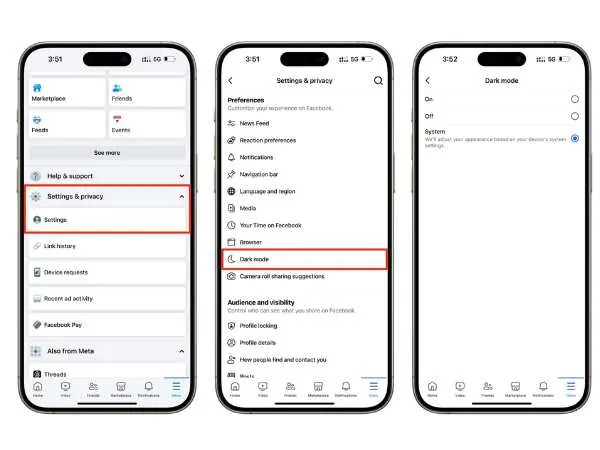
Dark mode is available for Facebook on iOS and Android devices. To enable the dark mode feature, follow the given step-by-step instructions:
- Install the Facebook app on your iPhone.
- Click the menu icon at the three lines in the bottom right-hand corner.
- Select ‘Settings and Privacy’ (represented by a cog icon).
- Now, you will see the ‘Dark Mode’ option along with a moon icon. Click on it and you will see three options: on, off and use system settings.
- The use system settings will lead you to the color scheme that you have chosen for your iPhone’s operating system.
- For activating dark mode in Facebook Messenger, simply tap your profile picture.
- Switch to the ‘Dark mode’ option.
How to Enable Facebook Dark Mode on iPhone
If you’re someone who scrolls Facebook late at night or prefers a more relaxing screen tone, Facebook Dark Mode on iPhone is something you’ll definitely love. It’s super easy to turn on, and it instantly changes your feed from bright white to sleek shades of grey and black. Here’s how you can do it:
- Open the Facebook app on your iPhone and make sure it’s updated to the latest version from the App Store.
- Tap on the menu icon (three horizontal lines) located at the bottom-right corner of the screen.
- Scroll down and tap “Settings & Privacy.”
- Under that section, you’ll find the “Dark Mode” option with a moon icon beside it.
- Tap it — you’ll now see three options: On, Off, or Use System Settings.
- If you choose “On,” the Facebook interface will immediately switch to dark mode.
- You can also select “Use System Settings” if you want Facebook to automatically adjust based on your iPhone’s display settings (for example, it turns dark when your iPhone enters night mode).
That’s it! Within seconds, your Facebook app will get a darker and smoother look, making it easier on your eyes — especially during nighttime browsing.
Pro Tip: You can also enable dark mode in Facebook Messenger separately. Simply tap your profile picture in Messenger, go to Dark Mode, and turn it on.
Also Read : – Upstox Pro App Review
How to Disable Facebook Dark Mode on iPhone
While dark mode looks elegant and is easier on the eyes, not everyone likes it. Some users prefer the classic bright look — especially in daylight, where a darker interface might seem dull or harder to read. If you ever feel like switching back, here’s how to disable it:
- Open the Facebook app on your iPhone.
- Tap on the menu (three horizontal lines) in the bottom-right corner.
- Scroll down to “Settings & Privacy” and tap on it.
- Choose “Dark Mode.”
- You’ll again see three options — this time, select “Off.”
- Your Facebook interface will immediately return to the light (classic) mode.
Alternatively, if your iPhone’s system-wide dark mode is on and Facebook is set to “Use System Settings,” you’ll need to turn off dark mode from your iPhone settings:
- Go to Settings → Display & Brightness → Appearance → Light Mode.
This will automatically make Facebook light again.
How to fix Facebook dark mode on iPhone devices?
If you are one of them who have encountered a bug with their Facebook app on iPhones and have disabled the new ‘Dark Mode’ option from the app, resolve this issue within minutes.You can easily fix Facebook’s new dark mode for iOS devices using the given instructions:
- Uninstall the Facebook app and make sure it isn’t running in the background. Swipe up from the bottom of the screen or you can also double-tap the home button to swipe up on the Facebook app.
- Now, reinstall it from the App Store.
- Head into iPhone settings and check the apps section.
- Click on it and select Facebook from the list.
- Turn on “Upload HD Video” and “Upload HD Photos” in the settings.
- Exit this window and open the Facebook app in the ‘dark mode.’
Benefits of Facebook Dark Mode on iPhone
- Reduces glare in low-light conditions
- Helps improve battery life on OLED screens
- Easier on the eyes during nighttime use
- Looks modern, clean, and professional
- Automatically syncs with your system appearance settings
Drawbacks of Facebook Dark Mode on iPhone
- Some users find text less readable on darker backgrounds.
- In daylight, the dark interface can be harder to see.
- The feature sometimes resets after app updates, requiring reactivation.
- A few visual elements, such as images or icons, may not contrast well.
Also Read : – What Companies Are In The Consumer Services Field?
Bottom Line –
When it comes to add a Dark Mode option to its iOS app, users like this feature as one of the best additions. The dark mode has been available on the social network’s website with lots of technical advantages. Switching Facebook’s bright and white interface to darker could help your mobile devices last noticeably longer between chargers. last, I hope this article is sufficient enough to clarify the information about Facebook Dark Mode IPhone.
